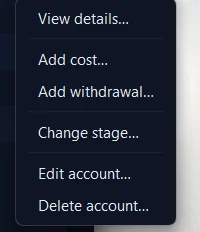
Opening the editor On the Accounts list, click the ••• menu at the end of the account’s row and choose Edit account…
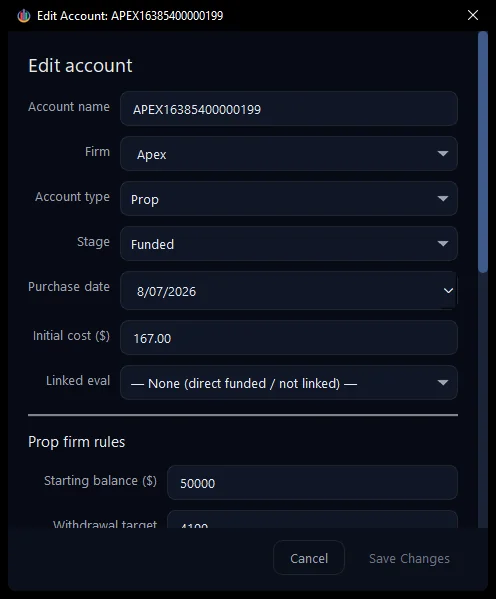
The account’s details The top of the window holds the account’s identity and cost: its name, firm, account type, stage, purchase date, initial cost, and any linked eval account. Change what you need — everything is a plain field or a dropdown.
Prop firm rules Scroll down to Prop firm rules. This is the account’s rulebook: starting balance, withdrawal target, min withdrawal, buffer zone, drawdown type and amount, and your profit split. On APEX16385400000199 the buffer zone is $52,600 and the minimum withdrawal is $500.
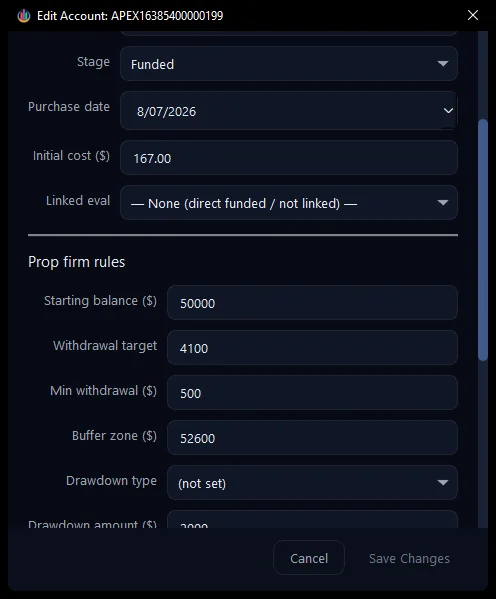
The buffer zone matters beyond record-keeping: only accounts that have one qualify for a payout, so setting it correctly is what lets the + Add Withdrawal button turn green once the balance clears the buffer and the withdrawal target. Leave it blank and the account will never flag as payout-ready, however high the balance climbs. Tip: Editing is non-destructive until you commit. Look over the rules, then click Save Changes to keep them — or Cancel to leave the account exactly as it was. We cancelled here, so nothing changed.