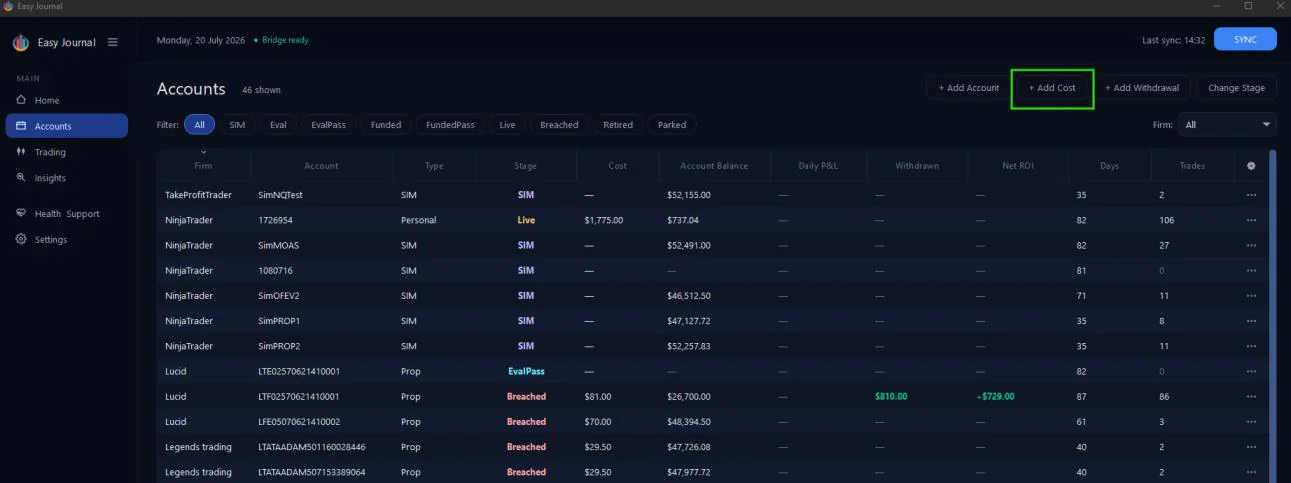
1. Open Accounts in the left sidebar, then click + Add Cost at the top right.
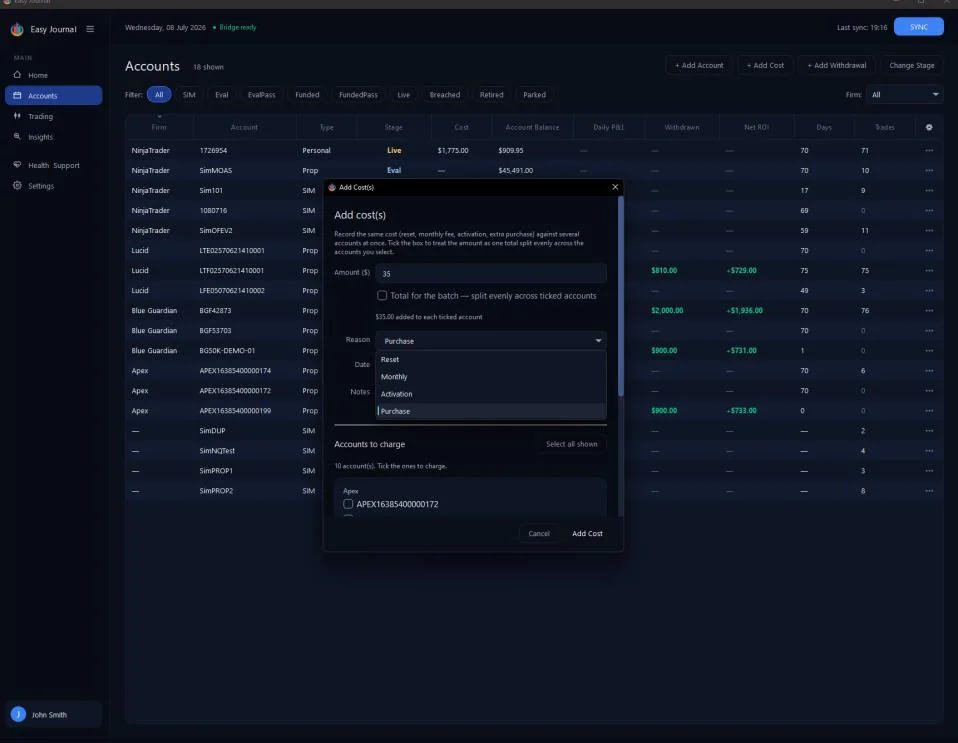
2. Enter the amount and pick the Reason - Reset, Monthly, Activation or Purchase. The reason lets reports break your spending down later.
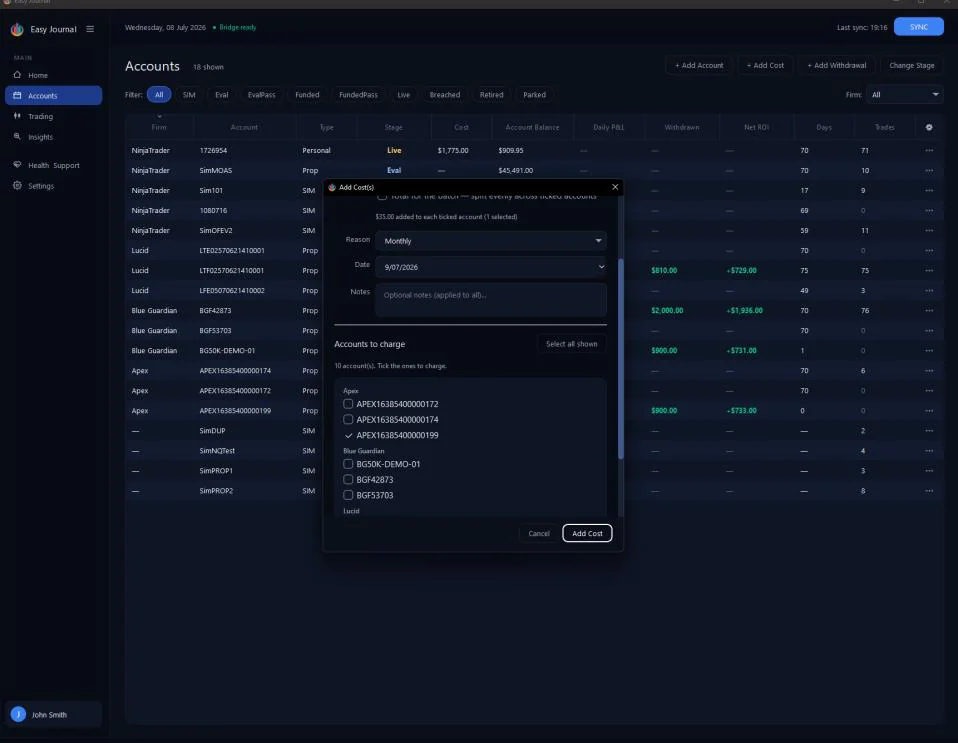
3. Set the date, add a note if useful, and tick the account(s) to charge. We picked Monthly and ticked APEX16385400000199 - the hint confirms $35.00 added to each ticked account (1 selected).
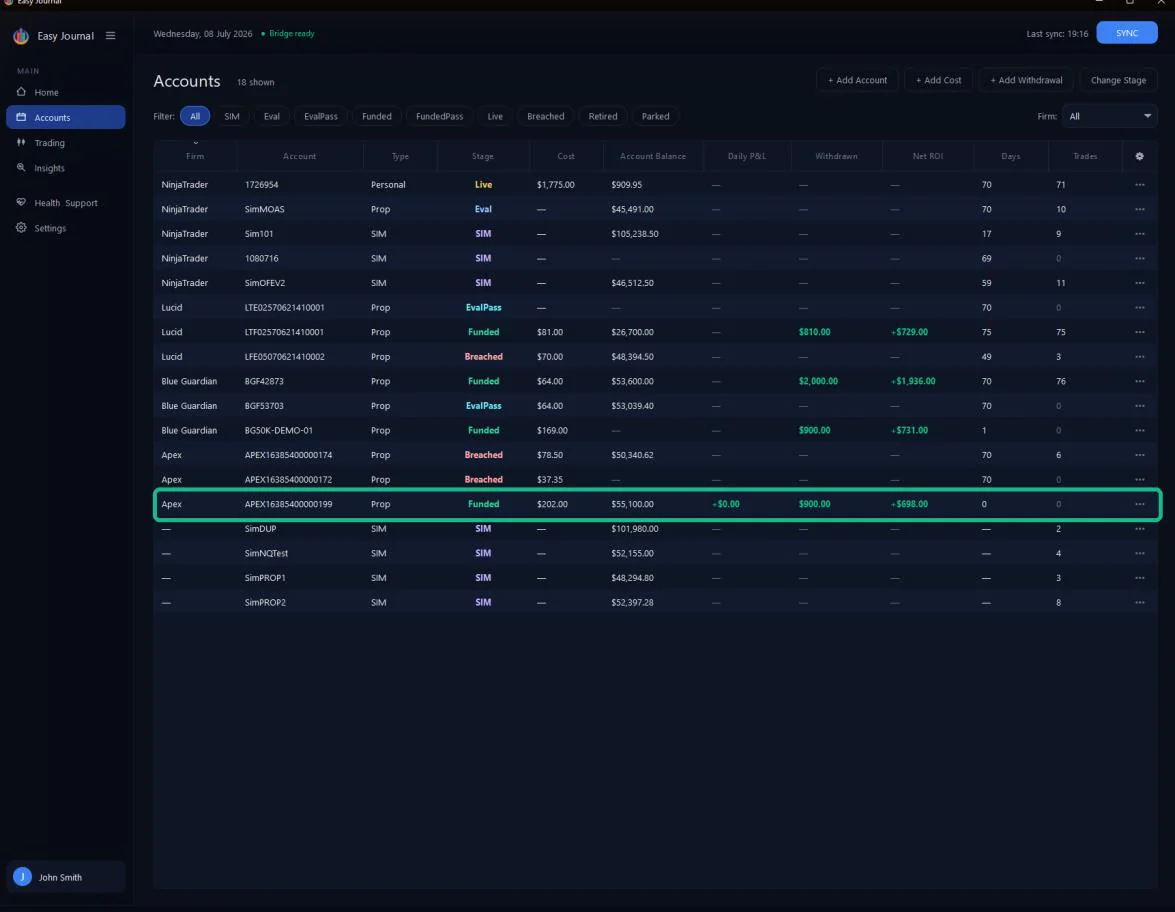
4. Click Add Cost. The result - the account's Cost column steps up from $167.00 to $202.00 the moment you save:
Tip: One fee across several accounts (like a data fee)? Tick Total for the batch to split a single figure evenly across the ticked accounts.